Inline Text Annotations Make Screenshot Notes Feel Immediate
Text notes now start where your eyes already are: on the canvas, at the exact point you clicked, with font choices that match the type of feedback you are sending.
Some screenshot feedback needs a number. Some needs a box. And sometimes the fastest answer is a short sentence directly on the image: "Rename this CTA," "Loading state missing," or "This headline is too quiet."
AnnotateShot 4.3.11 makes that moment feel simpler. Text mode no longer interrupts you with a browser prompt. Click the canvas, type in place, press Enter, and the note becomes part of the screenshot. When the wording needs one more pass, double-click the text annotation and edit it in the same spot.
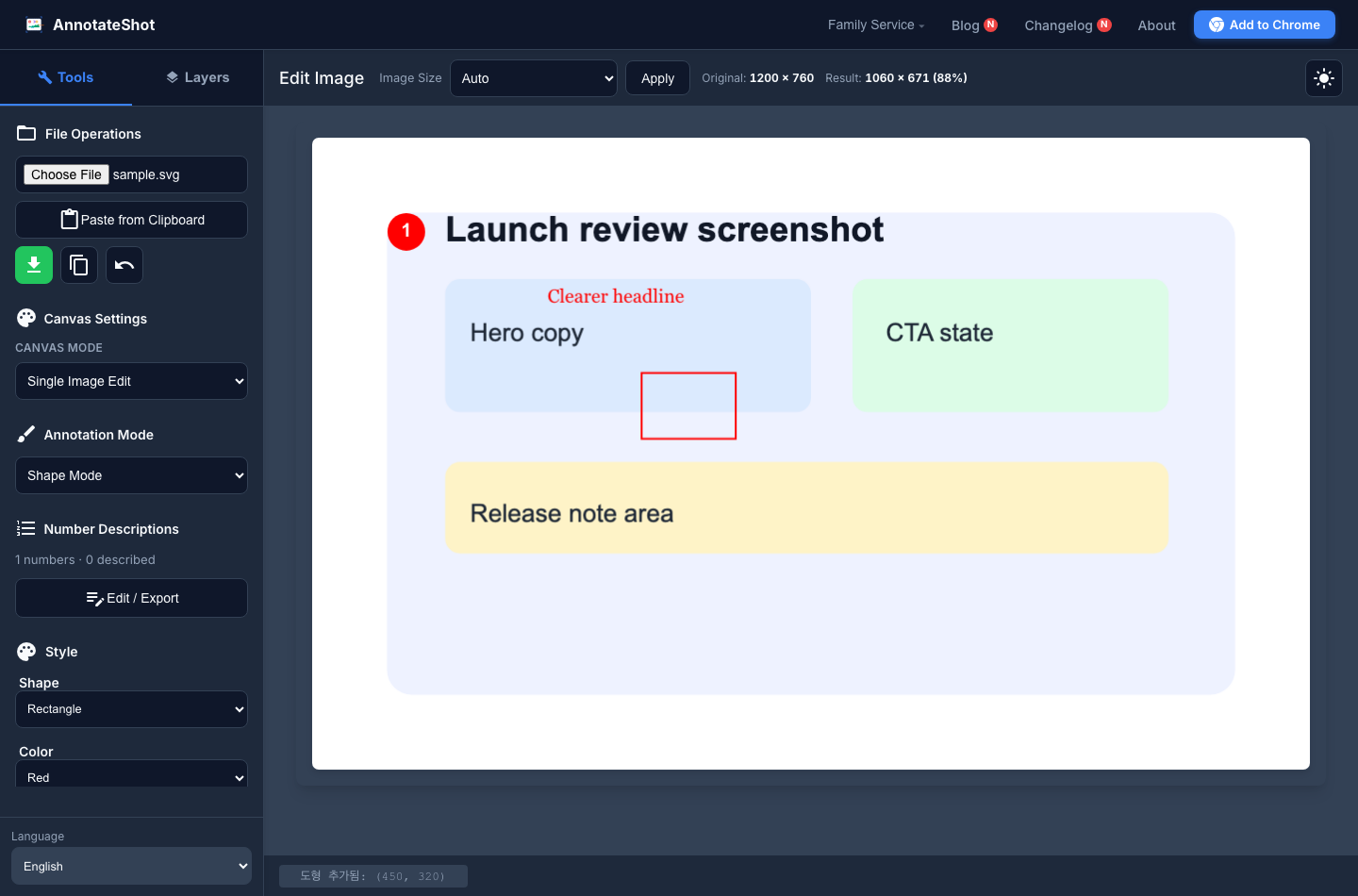
Type Where the Feedback Belongs
The old text flow asked you to click, move to a prompt, type, confirm, and then look back at the image. That works, but it breaks the rhythm of reviewing a visual.
The new flow keeps the interaction on the screenshot:
- Click where the note should appear.
- Type directly on the canvas.
- Press Enter to commit the annotation.
- Press Shift+Enter when the note needs a second line.
- Press Esc when the note is no longer needed.
- Double-click existing text to reopen it for editing without recreating the annotation.
Empty text is ignored, so a cancelled thought does not leave behind a stray annotation.
Choose the Tone of the Note
Text on screenshots does more than label an area. It sets the tone of the handoff. AnnotateShot now includes three practical font choices:
- Sans: clear UI feedback, product review comments, and general screenshot notes.
- Serif: editorial review, release notes, documentation examples, and presentation-ready screenshots.
- Mono: technical notes, code review screenshots, configuration values, and QA evidence where precision matters.
The selected font is stored with the annotation and rendered into saved or copied images, so the final artifact matches what you saw while editing.
Use Cases
Product review: write short comments directly beside a CTA, headline, card, or form field. Use numbers when you need a structured issue list, and use text when the note should travel visually with the screenshot.
Release notes: mark a feature screenshot with short labels such as "new export action," "updated empty state," or "font selector." Serif text can help the screenshot feel more editorial when it appears in a launch post or changelog.
Customer support: add quick instructions to a captured settings page before sending it to a customer. The note stays close to the control they need to use.
QA evidence: add a concise expected-result note near the failed state, then save the screenshot as proof for a bug report or verification log.
Why This Matters
Canvas tools like Figma and tldraw make text feel native because editing starts on the canvas instead of in a detached dialog. AnnotateShot does not need to become a full design tool, but screenshot annotation benefits from the same directness.
This release keeps AnnotateShot lightweight while removing a small but persistent interruption. The result is faster visual feedback, fewer context switches, and cleaner screenshots for the moments when a direct note says more than another callout number.