Numbered Screenshot Feedback Now Exports the Way Teams Work
Numbered callouts are still fast, but the explanation now lives in a better place: a dedicated editor with output formats for issues, docs, chat, and image-based handoffs.
Numbered callouts are one of the fastest ways to make a screenshot readable. Drop a 1 on the broken button, a 2 on the confusing message, a 3 on the missing state, and the viewer immediately knows where to look.
The hard part usually comes next. You still need to write the actual feedback somewhere else. The screenshot says "look here," but the issue tracker needs "what should change?" AnnotateShot 4.3.10 closes that gap with descriptions for numbered callouts and export formats that fit product feedback, QA review, customer support, and documentation.
The sidebar stays compact. It shows a short summary and a single edit entry point. The actual description work happens in a dedicated modal, where each number has room for a useful note without covering the screenshot canvas.
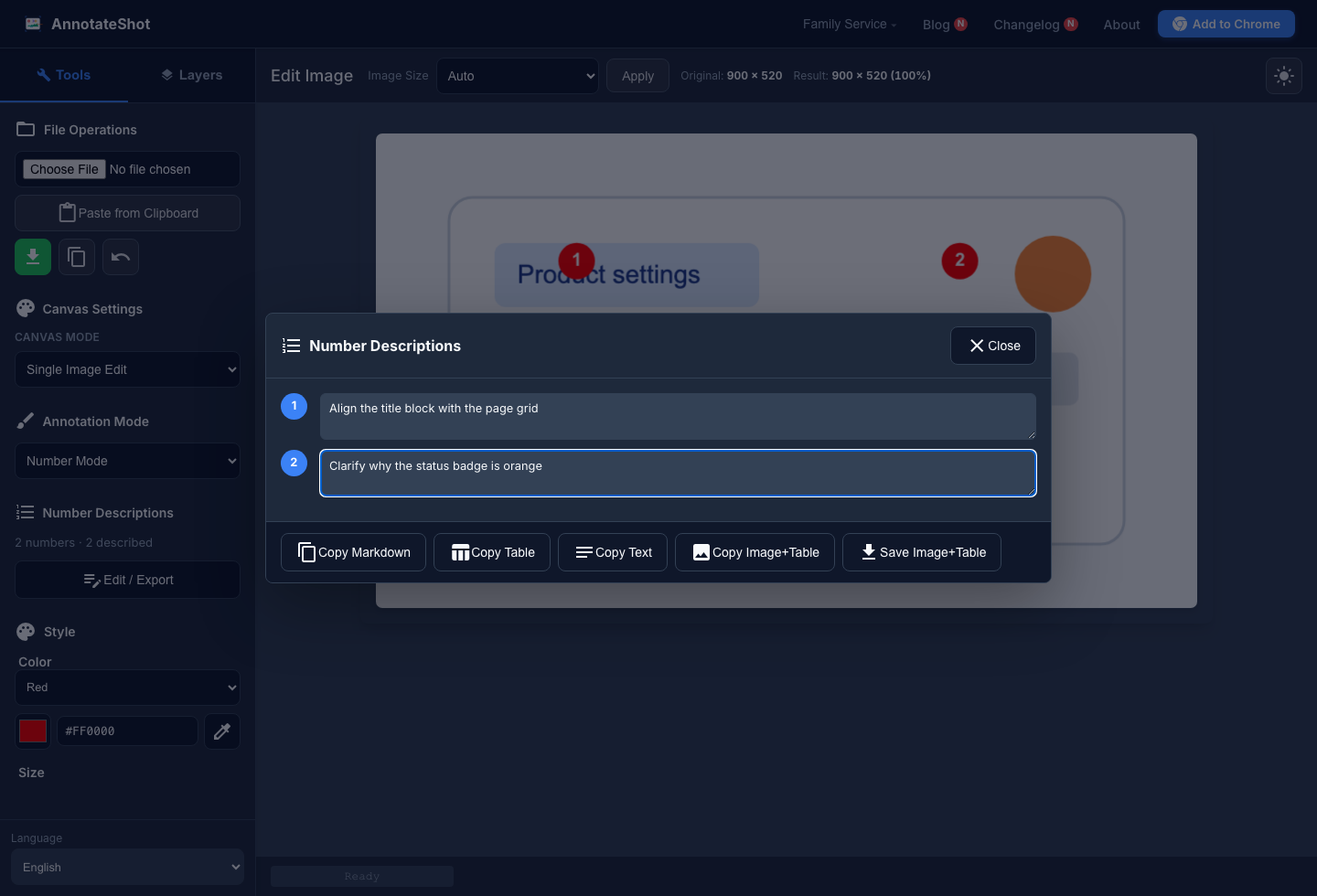
Write the Explanation Once
When you add number annotations, AnnotateShot keeps a matching description list for those visible markers. Write the note once, keep it attached to the number, and export it when you are ready:
- Align the primary CTA with the form edge
- Clarify the empty-state message
- Add a visible loading state after submit
The descriptions are editor-only. They do not clutter the exported screenshot unless you explicitly choose an image+table output. That keeps the visual clean while giving your written feedback a structured companion.
Copy the Format Your Destination Expects
Different teams paste feedback into different places. A GitHub Issue might need a Markdown checklist-style list. A product spec might read better as a table. A chat message might only need plain text.
The new export actions cover those common paths:
- Copy Markdown: a compact numbered list for issue comments and quick notes.
- Copy Table: a Markdown table for specs, QA reports, and structured reviews.
- Copy Text: plain numbered feedback for chat and tools that do not render Markdown well.
Send One Image When Context Matters
Sometimes the screenshot and explanation should travel together. For that case, AnnotateShot can now create a combined PNG: the annotated image on top, with a clean description table underneath.
Use Copy Image+Table when you want to paste a complete visual into a chat, document, or presentation. Use Save Image+Table when the feedback needs to become a file for release QA, design review, or support documentation.
Where This Helps
Product review: mark a pricing page with 1 for headline copy, 2 for CTA hierarchy, and 3 for the plan comparison table. Paste a Markdown table into GitHub Issues, Jira, Linear, or a product spec so the assignee gets both visual context and a scannable action list.
QA verification: use 1 for the unexpected validation state, 2 for the missing helper text, and 3 for the button that should be disabled. Then attach a single image+table PNG so the expected behavior is visible next to the screenshot.
Customer support: number the settings page in the order a customer should follow, then copy the plain text or image+table output into a reply so the customer sees where to look and what each marker means.
Documentation: keep the image clean while still producing structured text that can be reused in a help-center article, onboarding guide, internal SOP, or release QA note.
Why This Shape
Many annotation tools offer numbered callouts. Documentation-focused tools often go further by pairing screenshots with step descriptions and exporting structured documents. AnnotateShot is intentionally lighter: it keeps the quick browser-based editing flow, but adds enough structure to turn a screenshot into actionable written feedback.
The result is a practical workflow upgrade: fewer "what does 2 mean?" replies, cleaner issue descriptions, and a faster path from visual observation to assigned action.