2026.06.23
A Browser-Only HEIC Converter for the AnnotateShot Family
iPhones save photos as HEIC, and the rest of the world still wants JPG. The new HEIC Converter closes that gap without ever uploading your pictures.
If you use an iPhone, your camera roll is almost certainly full of HEIC files. Apple adopted HEIC because it stores the same photo in roughly half the space of a JPG. The trade-off shows up the moment you leave Apple's ecosystem: a Windows colleague can't open the attachment, an older web form rejects the upload, and a print shop asks you to "send it as a normal JPG." The format is good; the compatibility is not.
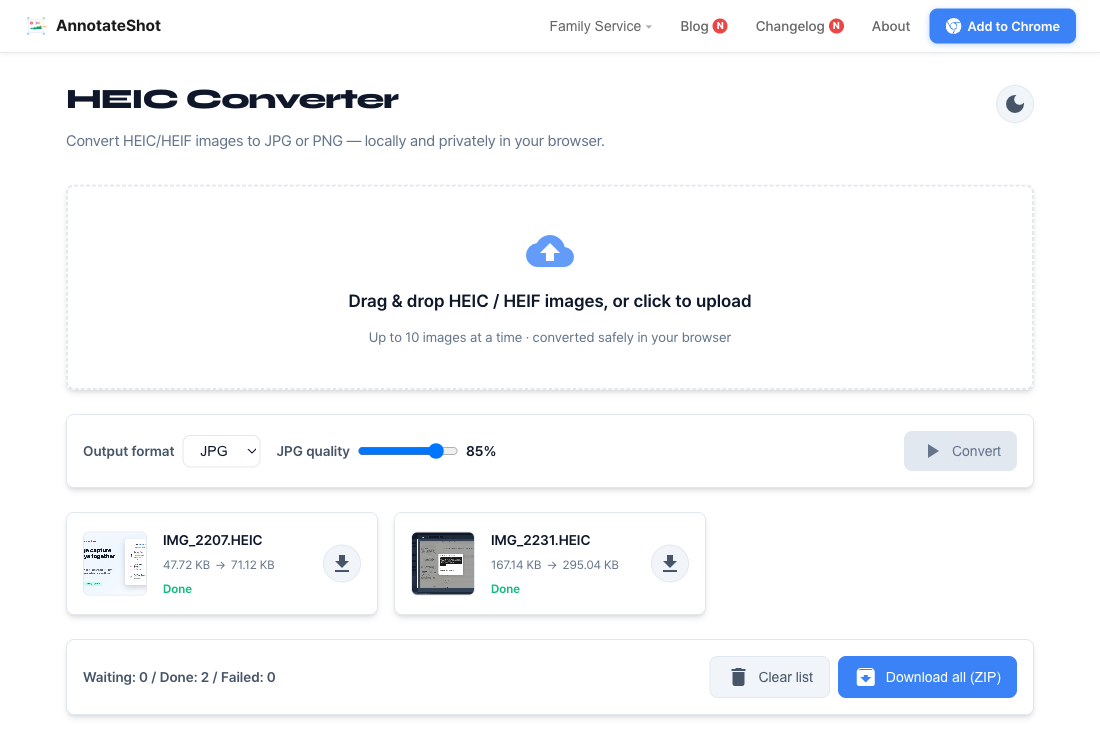
The new HEIC Converter joins the AnnotateShot family to handle exactly that moment. Drag in one or more .heic / .heif files, choose JPG or PNG, and download the result. The same nav menu that switches between AnnotateShot, the Kinship Calculator, Tangram, and the Voiding Diary now includes it too.
The most important detail is what does not happen: your photos never leave your device. Many free HEIC converters work by uploading each file to a server, converting it there, and handing back a download link — which means your personal pictures sit on someone else's machine, however briefly. This tool does all of the decoding and encoding inside your browser tab using WebAssembly. There is no upload, no account, and no server that ever sees the image.
Running locally raised one real engineering problem. Recent iPhones save high-resolution photos (24- and 48-megapixel) as tiled, grid-based HEIC images, and several popular browser libraries still ship an older build of libheif that simply rejects them with a blunt "format not supported." A converter that fails on the newest phones is not much of a converter. We moved the decoder to an up-to-date libheif build and verified it against full-resolution photos straight off a modern iPhone, so the files people actually have today convert cleanly.
Day to day, the tool is built for small batches. You can queue several photos at once, watch each one move from waiting to converting to done, and either save them individually or grab everything in a single ZIP. JPG output has a quality slider when you want to trade a little sharpness for a smaller file; PNG is there when you need a lossless copy.
You will also notice a limit of ten images per batch. Because the conversion happens in your browser rather than on a server, the constraint is memory, not money — each full-resolution photo holds a large bitmap while it decodes, and keeping dozens of finished images in a single tab is how you crash it, especially on a phone. Ten keeps the experience fast and stable on everyday hardware; clear the list and the next ten are ready to go.
None of this is a grand new product. It is a small, focused utility that removes a daily annoyance — the same spirit as the rest of the family tools. If you have ever been stuck with a photo your computer refuses to open, this is the one-page fix.