2026.06.28
A Browser MOV-to-GIF Converter with a Real Timeline Trimmer
Turning a short phone clip into a GIF should not require an upload or a login. The new converter does it in your browser — and lets you trim the clip the way a video editor would.
A GIF is still the easiest way to show a quick thing in motion — a bug reproducing, a feature working, a five-second moment worth sharing in a chat, a README, or a post. The trouble is the source. A clip recorded on a phone arrives as a .mov, often encoded with HEVC, and turning a slice of it into a GIF usually means uploading the whole video to some site and trusting it with your footage.
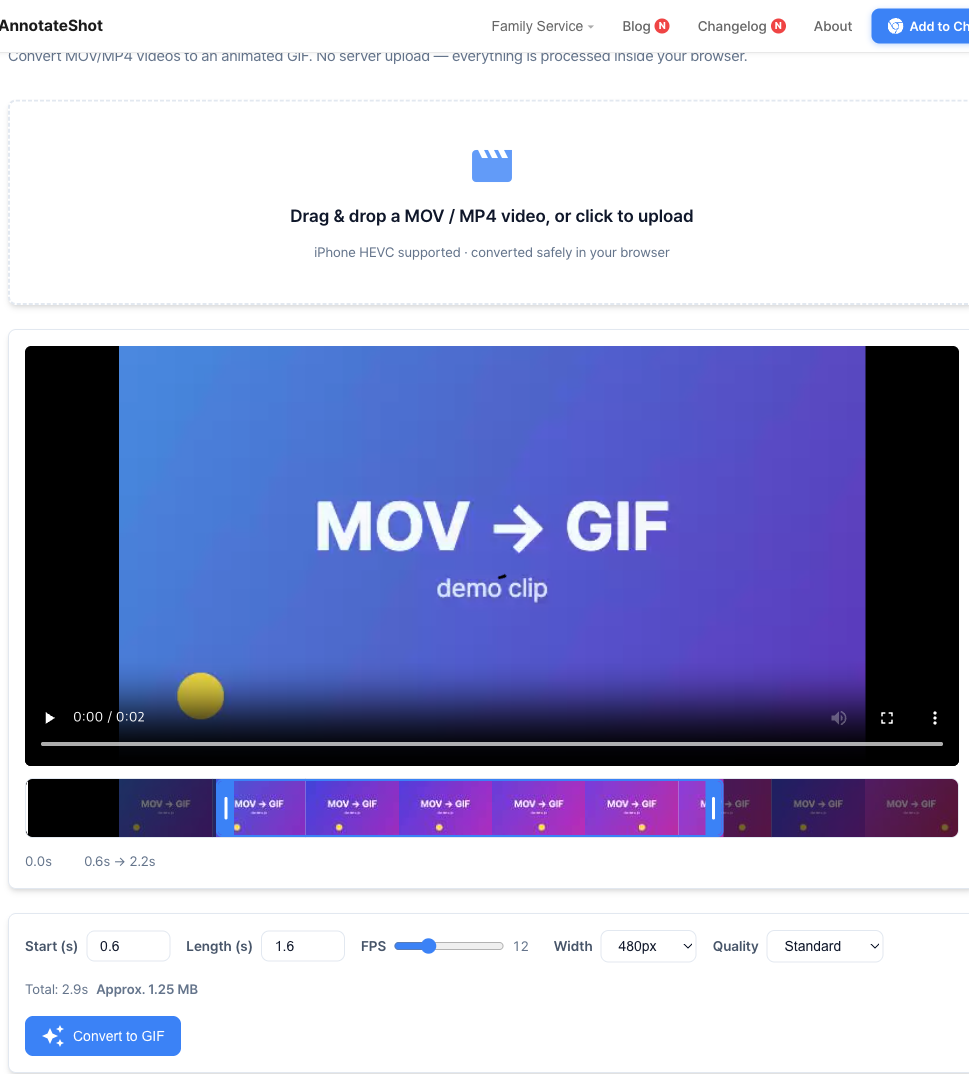
The new MOV to GIF converter joins the AnnotateShot family to remove that step. Drop in a .mov or .mp4, pick the part you want, choose how it should look, and download a GIF. Nothing leaves your machine: the decoding and encoding both happen inside the browser tab, so there is no upload, no account, and no server that ever touches your video.
Running locally created one real obstacle worth naming. Recent iPhones record in HEVC, and browsers are inconsistent about playing HEVC — Safari and Chrome on a Mac usually can, Firefox usually cannot. Relying on the browser's own decoder would mean the tool silently fails on the exact files most people have. Instead it carries its own decoder: an ffmpeg.wasm build, self-hosted alongside the page so it loads cleanly without special server headers, that turns the video into frames and assembles the GIF with a proper color palette. It works the same on a plain static host.
The part I cared about most is the trimming. Picking a range by typing start and end times is fine, but it is not how anyone actually edits video. So the converter builds a small filmstrip of thumbnails from the clip and gives you two handles to drag, the way CapCut or the iPhone's own editor do. You can drag either edge, grab the selected band and slide the whole window, click anywhere on the strip to move the playhead, press space to play or pause, and nudge frame-to-frame with the arrow keys. The selected region is exactly what becomes the GIF.
Because a GIF can balloon in size, the controls are about staying in control of that. There is a quality setting (more colors for fidelity, fewer for a smaller file), an fps slider, and a width. As you change them, a rough size estimate updates live, so you can see a setting is about to produce a ten-megabyte file before you commit to it rather than after. Lengths up to thirty seconds are allowed, with the understanding that long, high-quality GIFs are large by nature.
On a browser that cannot play the video at all, the filmstrip and player simply do not appear, and the tool falls back to the numeric start-and-length fields so it still works — just without the visual preview. That fallback is the honest version of "client-side": the experience is best where the browser cooperates, and it degrades instead of breaking where it does not.
Like the rest of the family tools, this is a small, single-page utility built to remove one specific friction. If you have ever wanted to turn ten seconds of a phone video into a GIF without handing the footage to a stranger, that is the whole pitch.