2026.11.20
A Clearer Workspace for Precise Screenshot Feedback
Automatic measurements, expressive shapes, and a calmer workspace for everyday screenshot reviews.
A screenshot can show a problem immediately. Explaining exactly where the problem is often takes longer. AnnotateShot 4.6 makes that second step easier with precision tools from our desktop workflow and a refreshed web editor.
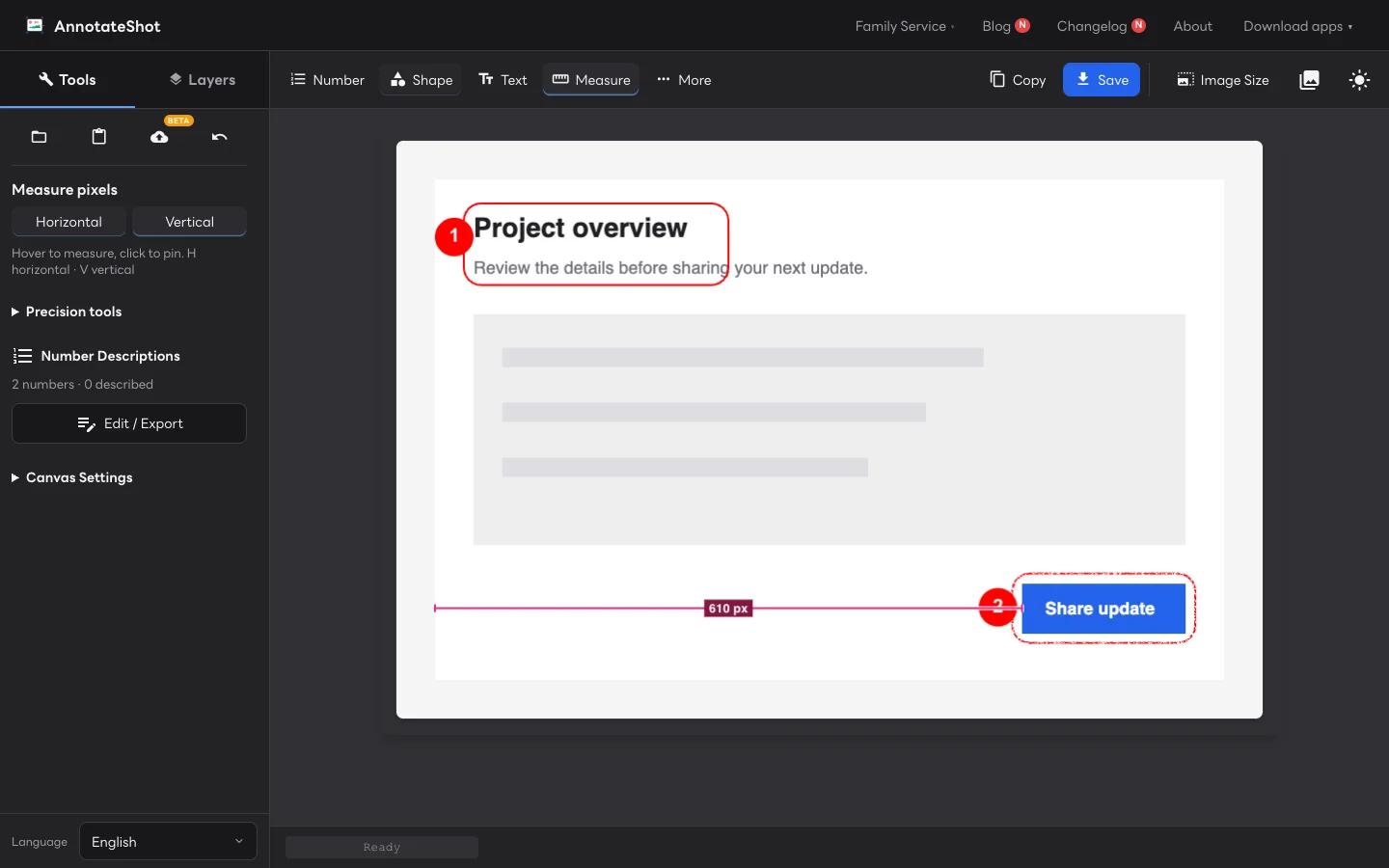
Measure a gap without drawing a ruler
Reviewing a button’s padding or checking spacing in a UI screenshot? Choose Measure and hover over the image. AnnotateShot scans the source pixels for nearby color boundaries and previews the gap. Click once to pin the measurement so it appears in the image you save or copy.
Use the horizontal or vertical axis controls to choose the direction. Hold an arrow key to scan in one direction, and press Escape to leave measurement mode. The values describe pixels in the editing image, so resize the image first when its dimensions matter. Anti-aliased edges, gradients, and photographs can produce different boundaries than a flat UI screenshot.
Line up feedback with less dragging
Alignment guides help position callouts and resize rectangles or circles against nearby annotations and the canvas. Hold Alt or Option to move freely. For small corrections, select a callout and use the arrow keys to move it one pixel, or Shift plus an arrow key to move ten pixels. Undo lets you recover the previous position.
For a bug report with several numbered steps, this means spending less time arranging labels before sending the image to a teammate.
Choose the right shape for the message
Round a rectangle’s corners from 0 to 40 image pixels to match the area you are highlighting. Choose the crayon stroke for a textured outline on rectangles, circles, arrows, and curved arrows. A clean solid outline works well for precise QA notes, while crayon marks give informal review feedback a more expressive feel.
The image eyedropper reads colors directly from the image being edited. Your corner and stroke choices carry through previews, saved PNGs, and copied images.
A quieter workspace, in light and dark
Numbers, shapes, text, and measurements now sit above the canvas. More opens the additional tools, and the left panel shows options for the active tool. Copy and Save stay within reach at the top right. Open an image from the center of the empty canvas, drop a file, or paste from the clipboard to get started.
Neutral backgrounds keep attention on the screenshot. Blue highlights the active tool and primary actions. LINE Seed improves consistency across Korean, English, and Japanese interface labels, and download icons remain readable in both themes.
See the complete 4.6.0 release notes. The web editor is available directly in your browser.